


How to Change the PHP Version in WPHost #
You can change your website’s PHP version yourself in the WPHost panel. There are two ways to do it: apply the new version straight away, or use the Smart PHP Update tool, which checks your site’s compatibility with the selected version beforehand.
Open the website settings
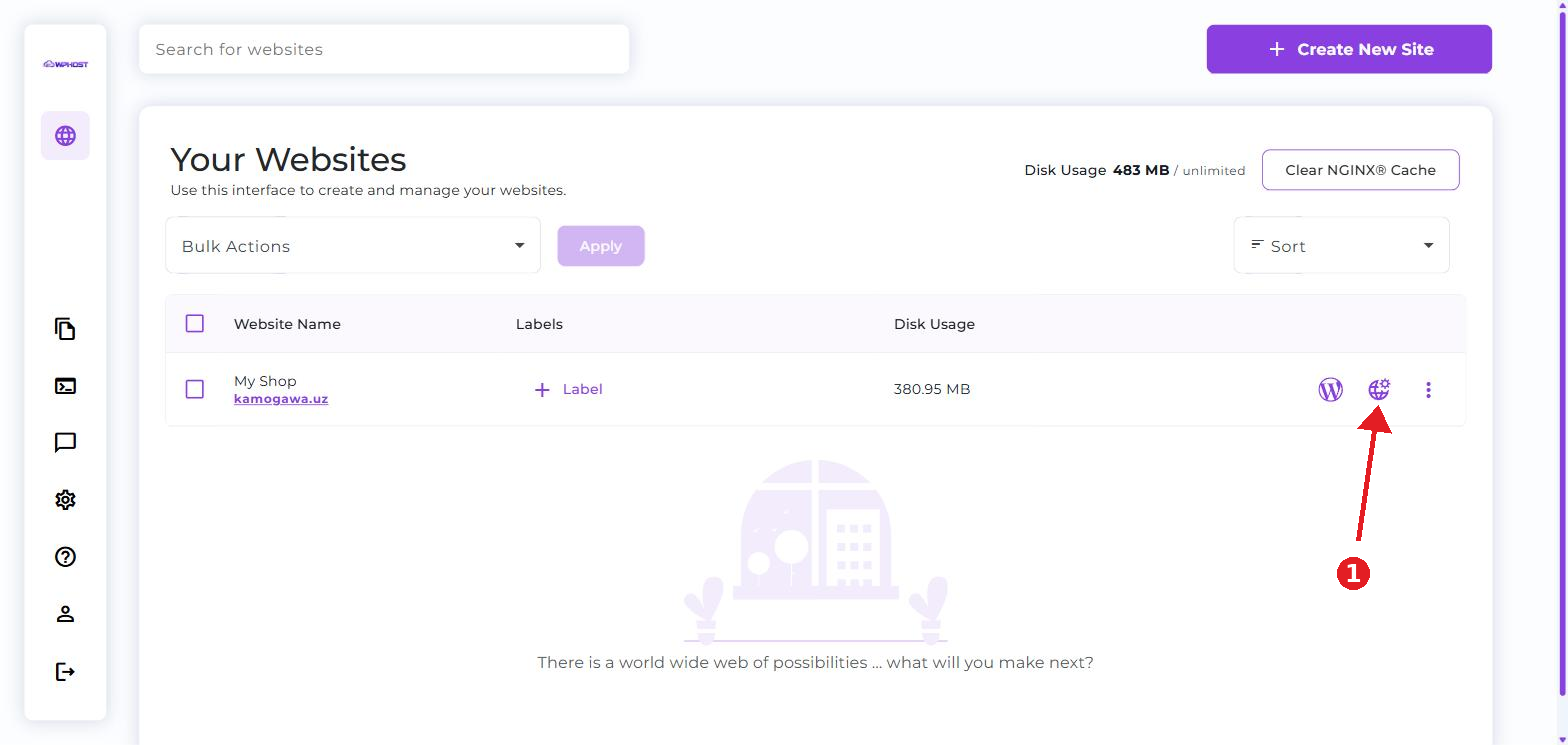
In the WPHost panel, go to the Your Websites section.
Find the site you need in the list and click the website settings icon on the right side of its row.
Go to the PHP Settings section
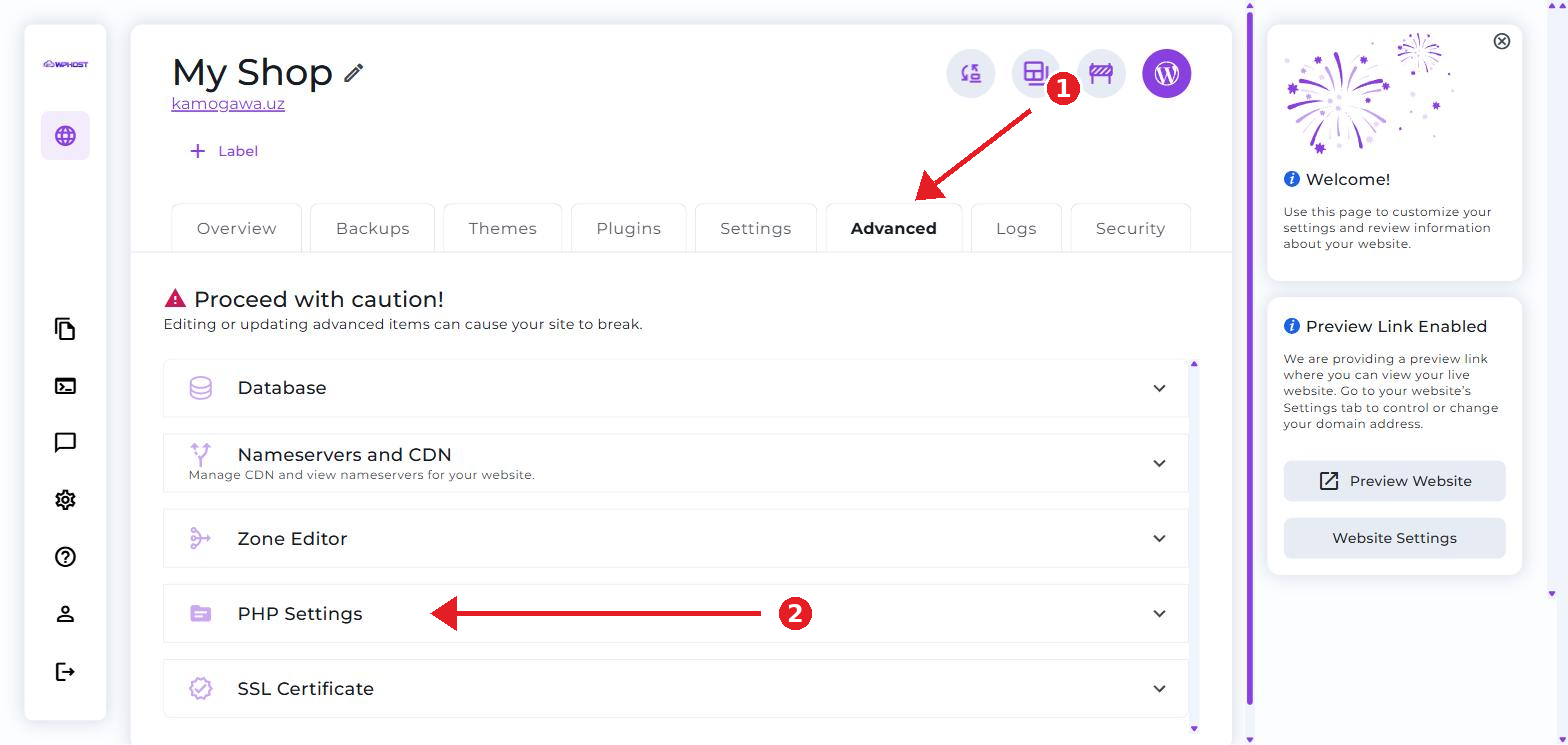
Open the Advanced tab.
In the list of advanced items, find and expand the PHP Settings section.
Select a PHP version
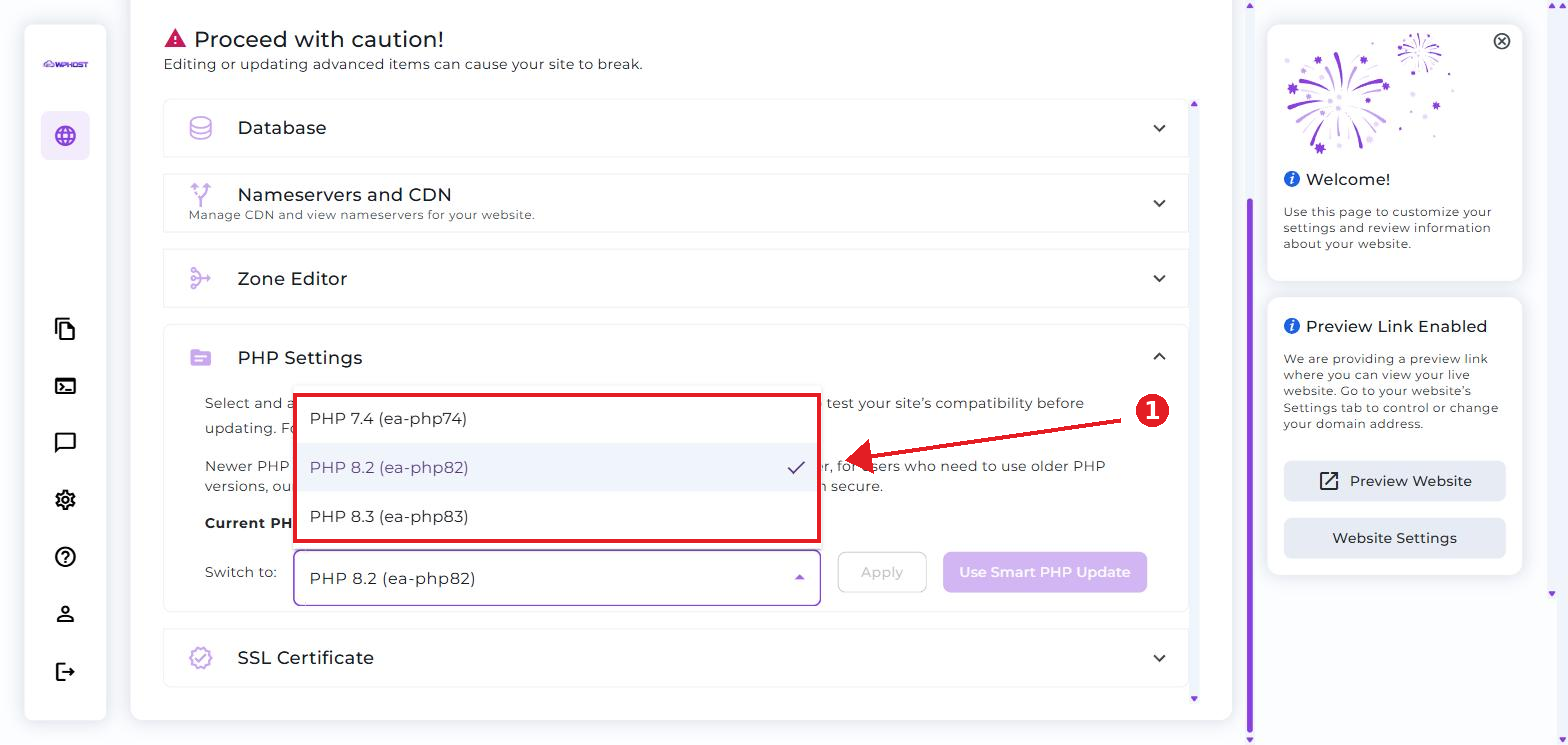
Your current version is shown in the Current PHP Version line.
Open the Switch to dropdown and select the version you need.
Apply the change
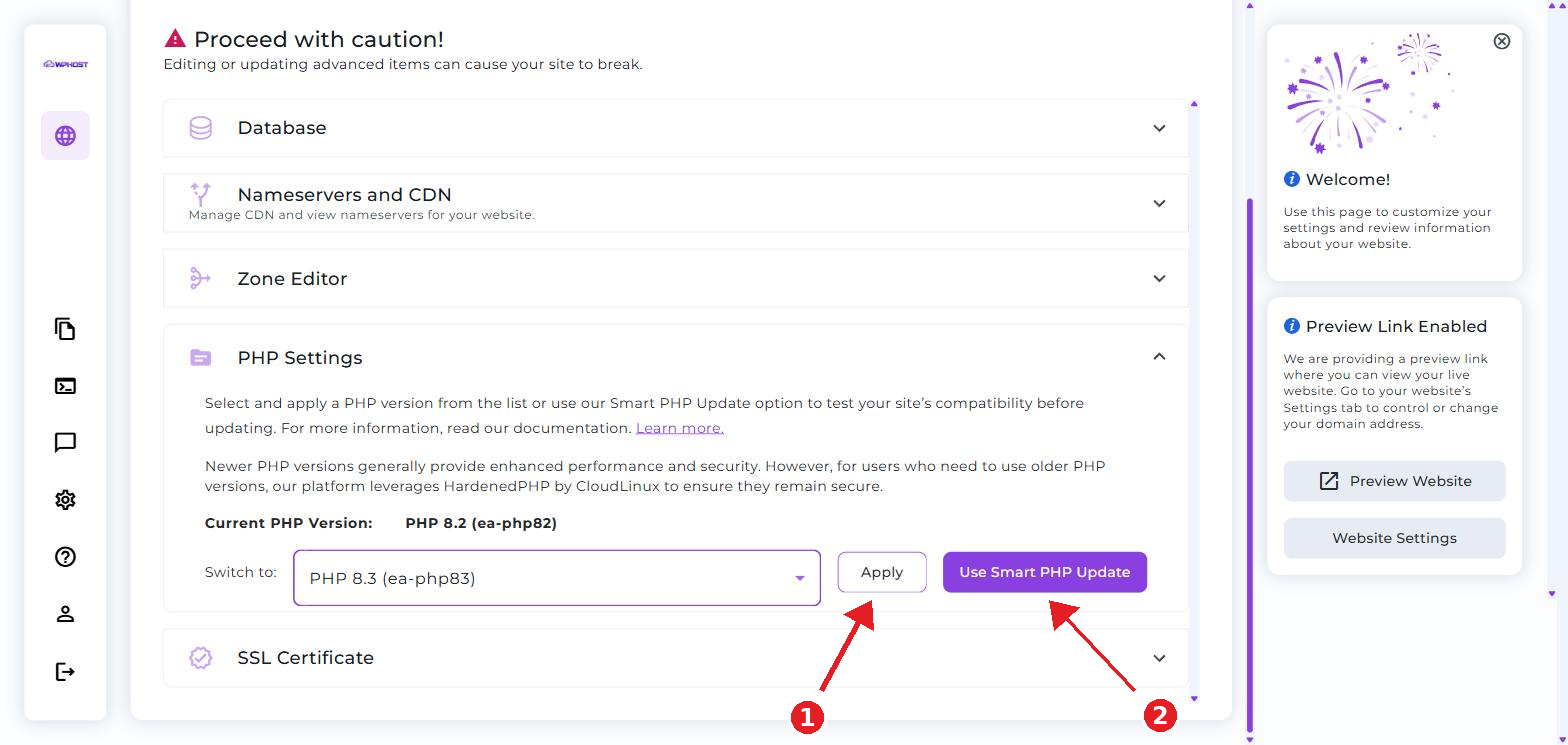
Once you’ve selected a version, two buttons become active:
- Apply — the PHP version changes immediately.
- Use Smart PHP Update — the version is checked for compatibility first.
How Smart PHP Update works: the system creates a copy of your site on a separate domain, applies the selected PHP version to it and runs diagnostics to identify possible compatibility issues. You review the results, and only then confirm the update for your live site — or cancel it.
The PHP version has been changed successfully. Open your site and make sure everything works correctly.
Editing or updating items on the Advanced tab can cause your site to break. Some themes and plugins don’t support newer PHP versions — use Smart PHP Update or create a backup before updating.