


Skip to content
WP Host

WP Host

  • Главная
  • База знаний
Войти
Панель управления хостингомcPanel · server.wphost.uzКабинет абонентаclients.ahost.uz
  • Русский
  • O'zbekcha
  • English

Creating and Managing a Website

6
  • Configuring WordPress Website Settings in WP Host
  • Creating Backups in WP Host
  • Restoring a WordPress Website from Backup in WP Host
  • Managing Domains and SSL for Your WordPress Website in WP Host
  • Optimizing WordPress Website Performance in WP Host
  • Installing a New Theme in WP Host

Site Installation

3
  • Creating a New WordPress Website in WP Host
  • Basic WordPress Website Installation in WP Host
  • Importing an Existing WordPress Website into WP Host

Managing Your Hosting Account

1
  • Managing Advanced WordPress Website Settings in WP Host
View Categories
  • Главная
  • Документация
  • Managing Your Hosting Account
  • Managing Advanced WordPress Website Settings in WP Host

Managing Advanced WordPress Website Settings in WP Host

2 мин. чтения

ℹ Information
The Advanced section contains additional tools for managing your WordPress website. Here you can view database information, manage DNS records, change the PHP version, configure the CDN, and view SSL certificate details.
01

Open the Advanced Section

Open the list of websites.

Select the required WordPress website and open the Advanced tab.
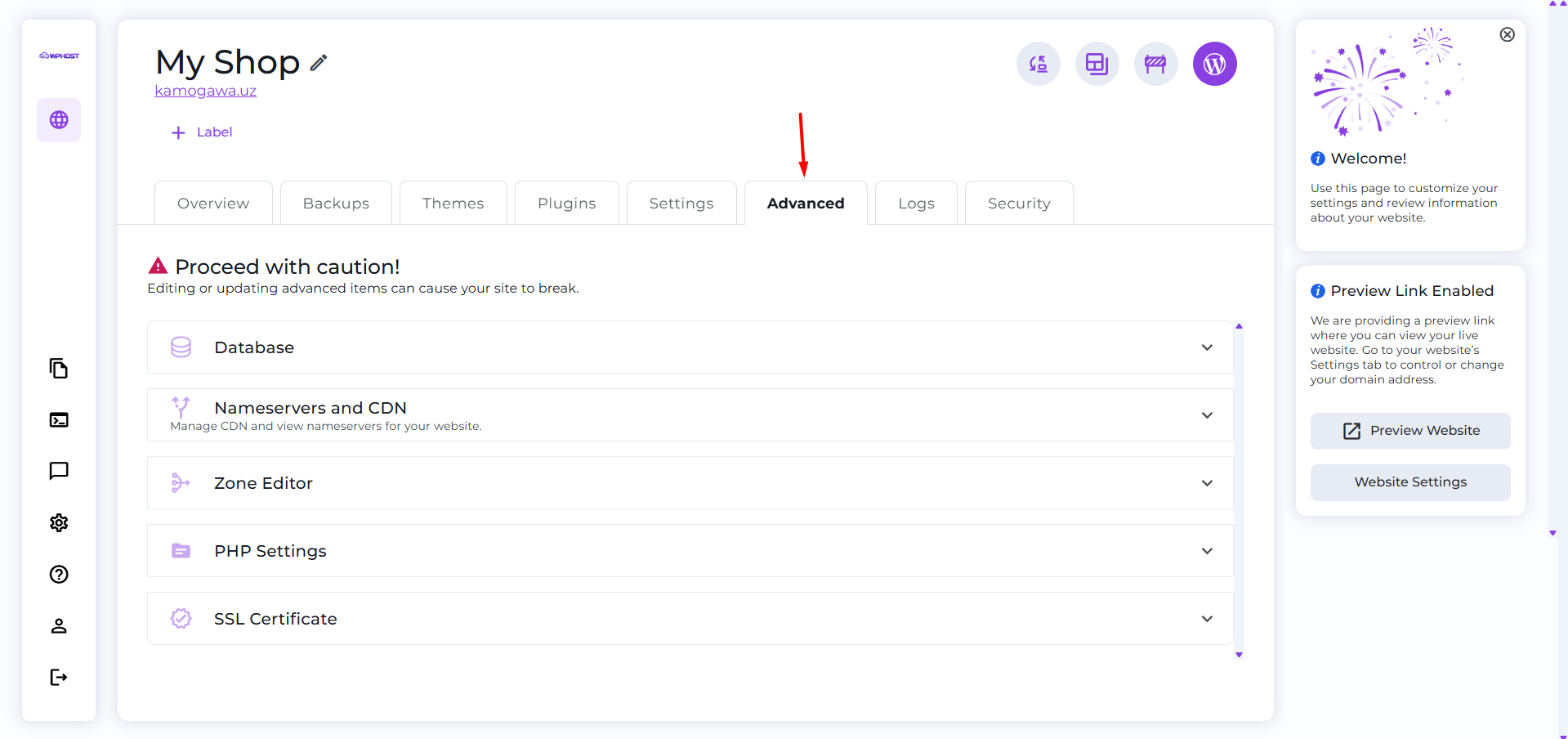

The Advanced section contains additional options for managing your WordPress website.
02

View Database Information

The Database section displays information about your WordPress database, including the database name, username, table prefix, and server address.

If necessary, you can open the database in phpMyAdmin by clicking the Open in phpMyAdmin button.

This section is intended for viewing database parameters and quickly accessing phpMyAdmin.
03

Configure CDN and Nameservers

In the Nameservers and CDN section, you can enable CDN support and view the recommended nameservers for connecting your domain.

If your domain uses the recommended nameservers, the system can automatically detect the required settings.
04

Manage DNS Records

The Zone Editor section allows you to manage your domain’s DNS records.

  • view existing records;
  • create new records;
  • edit existing records;
  • delete unnecessary records.
Changing DNS records may affect the operation of your website and email services. Make changes only when necessary.
05

Change the PHP Version

The PHP Settings section displays the current PHP version used by your website.

If necessary, you can select another available PHP version or use the Smart PHP Update feature, which checks your website for compatibility before performing the upgrade.

Before updating PHP, it is recommended to ensure that your installed themes and plugins support the selected version.
06

View SSL Certificate Information

The SSL Certificate section displays information about the installed SSL certificate, its issuer, and its expiration date.

If necessary, you can renew the certificate automatically by clicking Run AutoSSL or install a new SSL certificate manually.

A valid SSL certificate provides a secure HTTPS connection between your website and its visitors.
✓ Completed
You now know where to find the advanced settings for your WordPress website in WP Host. You can return to the Advanced section at any time to modify the required settings.
Updated on July 27, 2026

What are your Feelings

  • Happy
  • Normal
  • Sad

Share This Article :

  • Facebook
  • X
  • LinkedIn
  • Pinterest
Managing Advanced WordPress Website Settings in WP HostManaging Advanced WordPress Website Settings in WP Host
© 2026 WP Host • Built with GeneratePress